
Clerk
Probo reads your Clerk application’s end users through the Backend API so you can review who has access. These are the people who sign up to your application, not your Clerk Dashboard team members, so Clerk exposes no role or administrator concept for them and both fields are Not supported.
Prerequisites
Section titled “Prerequisites”- Probo organization administrator access
- Access to the target Clerk application in the Clerk Dashboard, with permission to view its API keys page
- The Clerk instance whose end users Probo should review (each Secret Key is bound to a single development or production instance, so use one key per instance)
Collected Fields
Section titled “Collected Fields”| Probo field | Clerk field | Notes |
|---|---|---|
| Name | first_name and last_name |
Falls back to the username, then the primary email address, when no name is set |
email_addresses |
The primary email address | |
| Role | Not supported | |
| Admin | Not supported | |
| Status | banned, locked, deprovisioned |
Active unless the user is banned, locked, or deprovisioned |
| MFA | two_factor_enabled, totp_enabled, backup_code_enabled |
Derived from the user’s two-factor, TOTP, or backup-code enrollment |
| Last login | last_sign_in_at |
The user’s most recent sign-in |
| External ID | id |
Stable identifier used to track the account across reviews |
| Created at | created_at |
When the user account was created |
Step 1: Create an API Key
Section titled “Step 1: Create an API Key”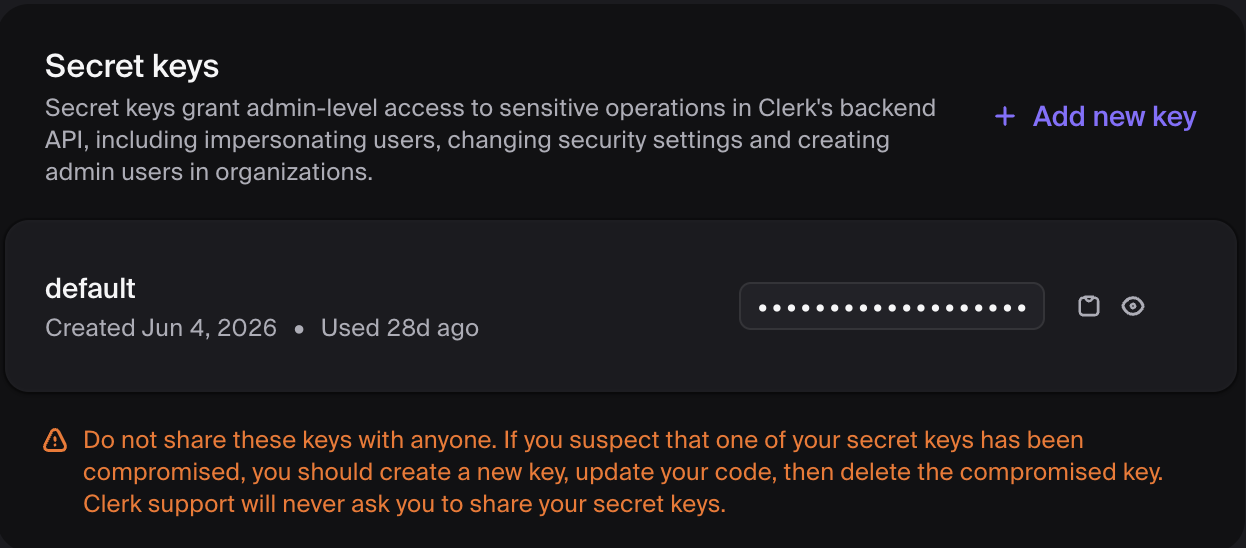
- In the Clerk Dashboard, select your application, then open API keys in the sidebar.
- Under Secret keys, copy the Secret Key, or create a new one. The Secret Key is unscoped and grants full Backend API access, so there is no permission or scope to set.
- Copy the key (
sk_live_…/sk_test_…) and store it securely. A newly created secret cannot be retrieved again later.
Step 2: Connect in Probo
Section titled “Step 2: Connect in Probo”- In Probo, go to Access Reviews > Sources > Add Source.
- Find Clerk, click API Key, paste the key, and click Connect.
Probo names the source Clerk and pulls your application’s end users into your campaigns.
Troubleshooting
Section titled “Troubleshooting”- Key rejected. Confirm it’s a Secret Key (
sk_live_…/sk_test_…) from the Clerk Dashboard. Publishable keys (pk_live_…/pk_test_…) don’t work. - No users appear. The Secret Key must belong to the Clerk instance whose end users you’re reviewing, and that instance must have users who have signed up.